The whole loop, start to sold.
Snap a photo at lunch, verify with a text, get a buyer by afternoon. Here’s what that actually looks like.
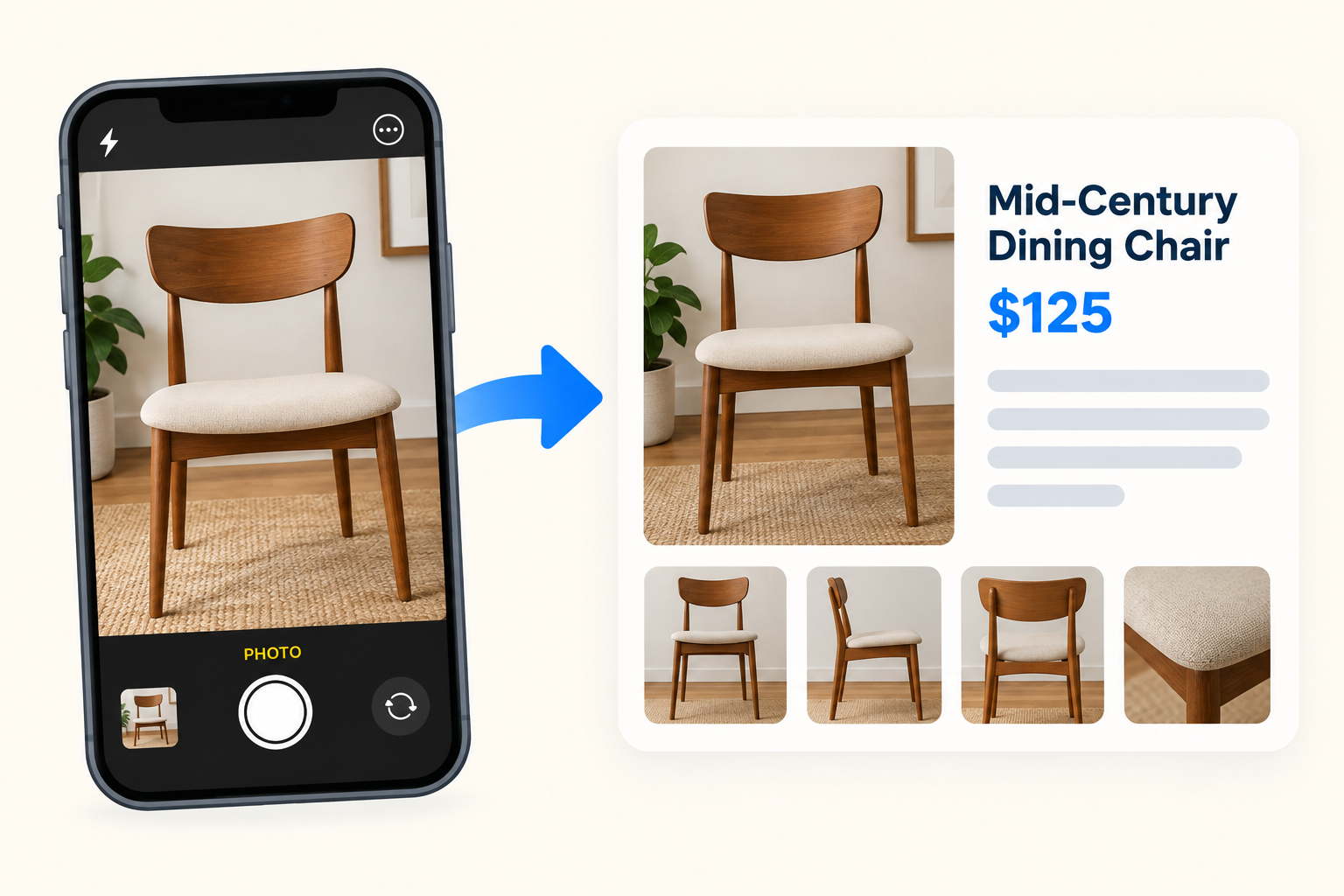
Photo in, drafted title / description / price out.
Open yesavailable.link on your phone. Pick a photo. Nothing else. We read the photo and draft the title, description, and a fair used-market price in about 30 seconds. Every draft is stored under a temporary session — nothing is public until you verify your phone in the next step. Have a pile of items? There's a Batch upload link on the homepage for uploading up to 20 photos at once.
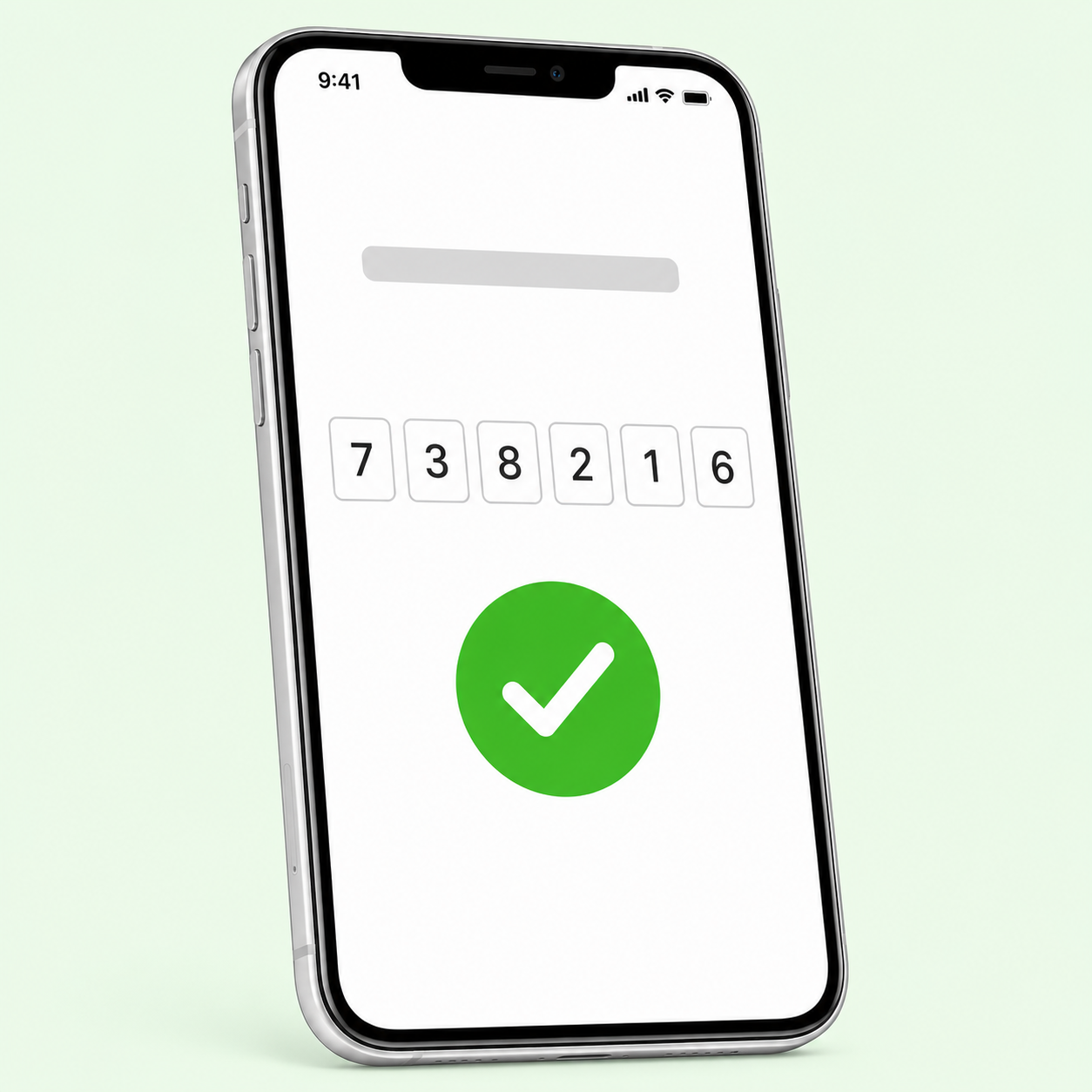
One text with a 6-digit code — about 15 seconds.
When you're happy with the preview, verify your phone. Twilio texts a 6-digit code, you enter it, your listing goes live at yesavailable.link/i/[slug]. Batch flow: all items in the batch publish under one sale URL so buyers can browse everything you posted.
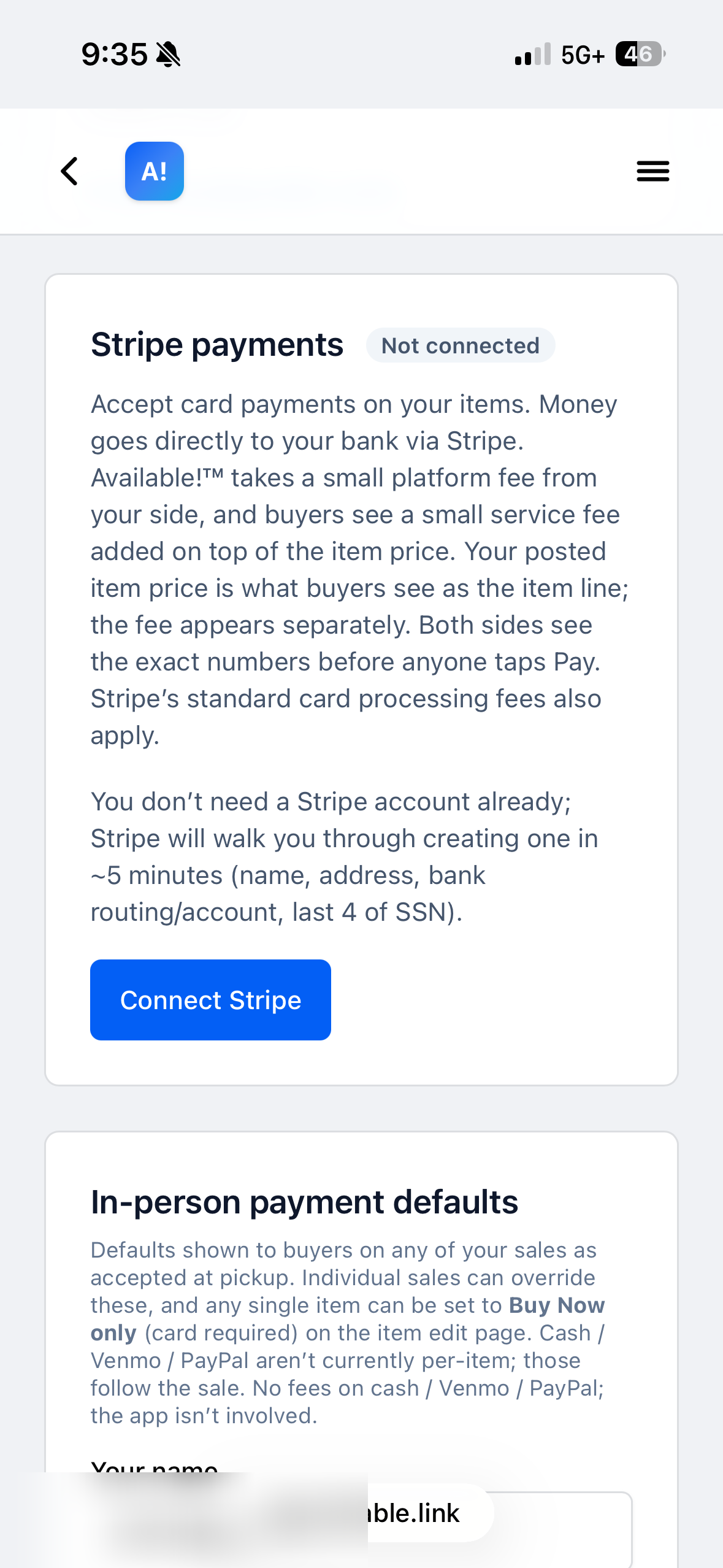
Connect Stripe once. Buy Now works on every item after.
Optional but strongly recommended. Available!™ walks you through Stripe onboarding — name, birthdate, last 4 of SSN (for ID, not a credit check), bank account for payouts. Takes about 5 minutes. Skip it if you only want cash / Venmo / PayPal at pickup, but Buy Now (the fastest buyer path) stays disabled on your items until this is done.
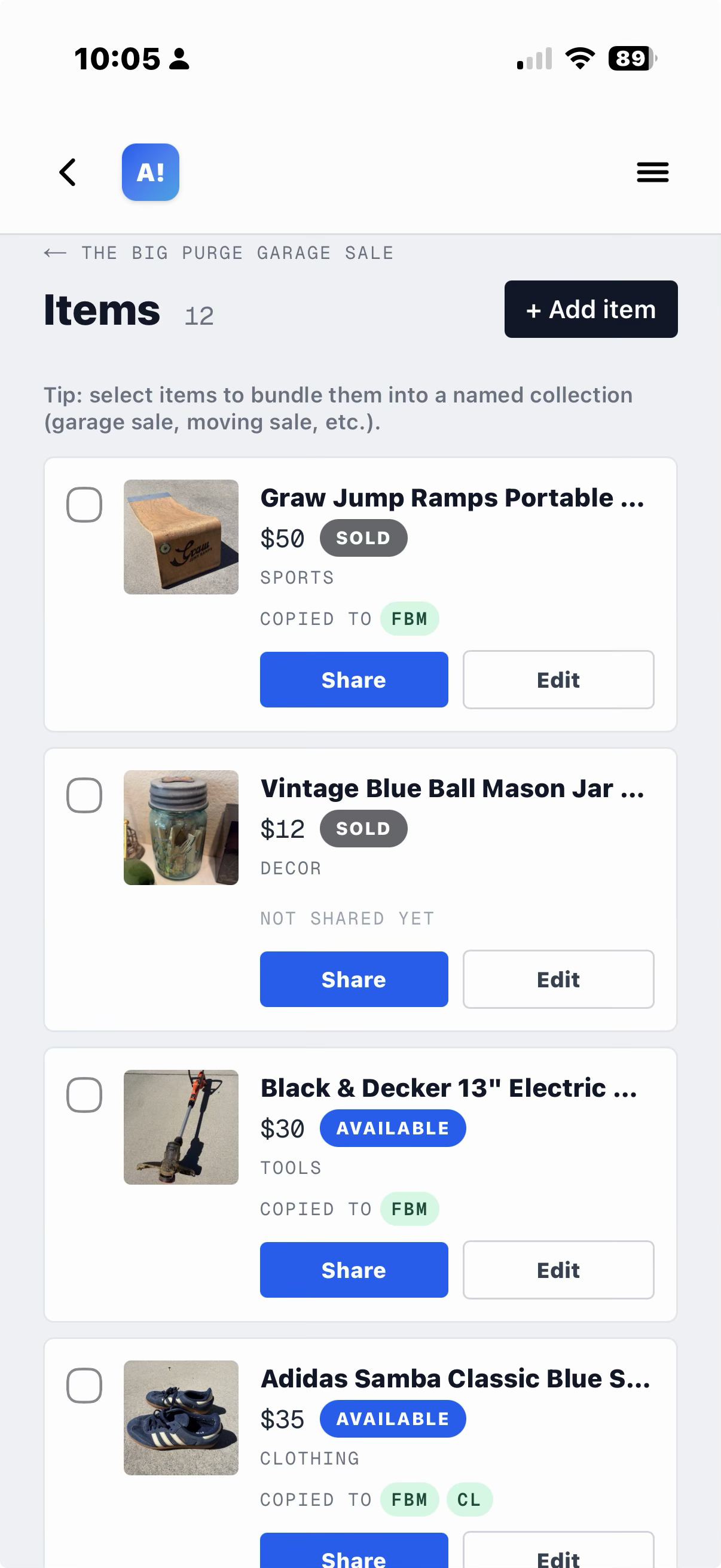
Every item, every status, one place.
Available, held, sold, reserved — all your listings in one dashboard with thumbnails, prices, and per-row actions. No spreadsheets, no memory required. This is what a working day looks like on Available!™.
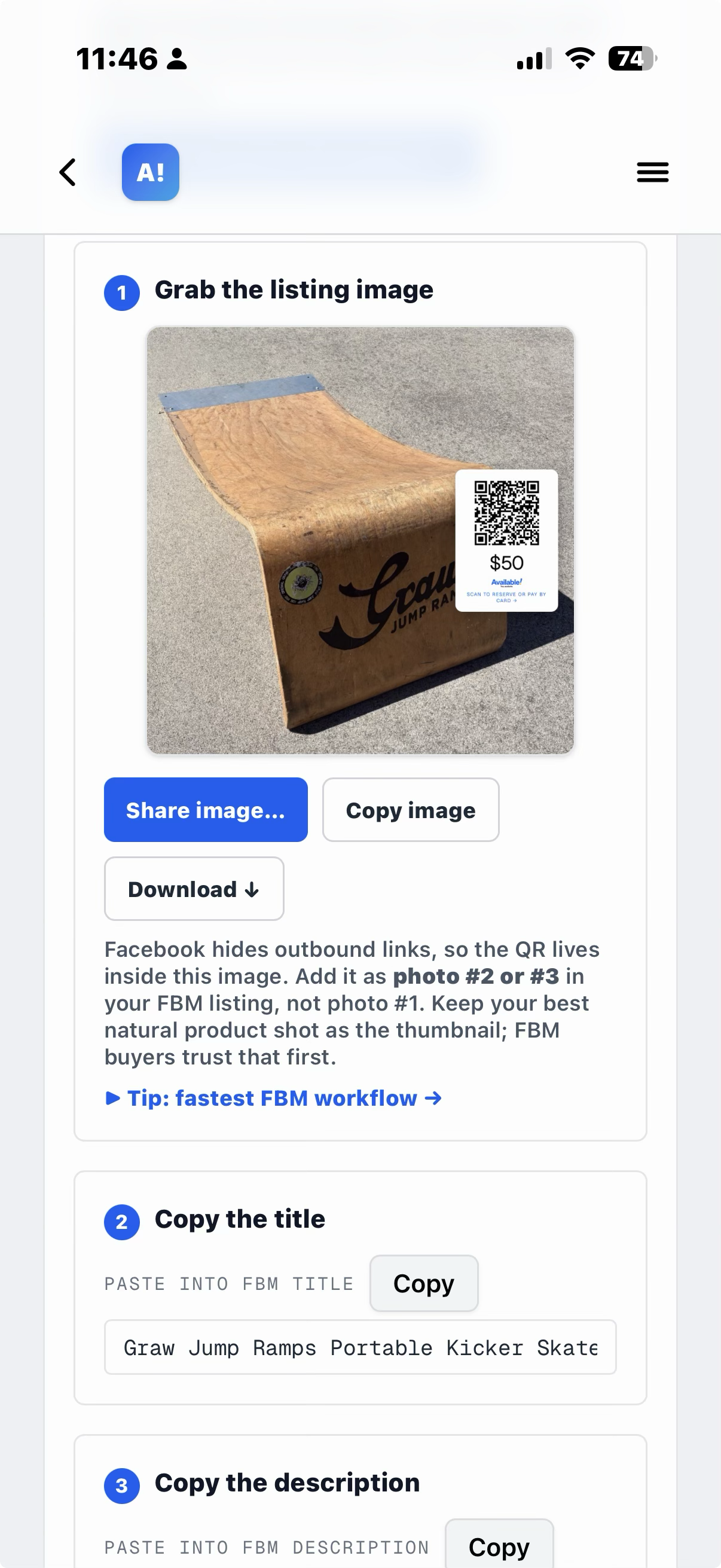
Ready for Facebook Marketplace in one tap.
The scan-to-buy image bundles your photo, price, QR code, and Available!™ branding into a single image. Share it to Facebook, Craigslist, or Nextdoor directly, or download it. Facebook Marketplace strips outbound links but not photos, so the QR gets through where a text link wouldn't.
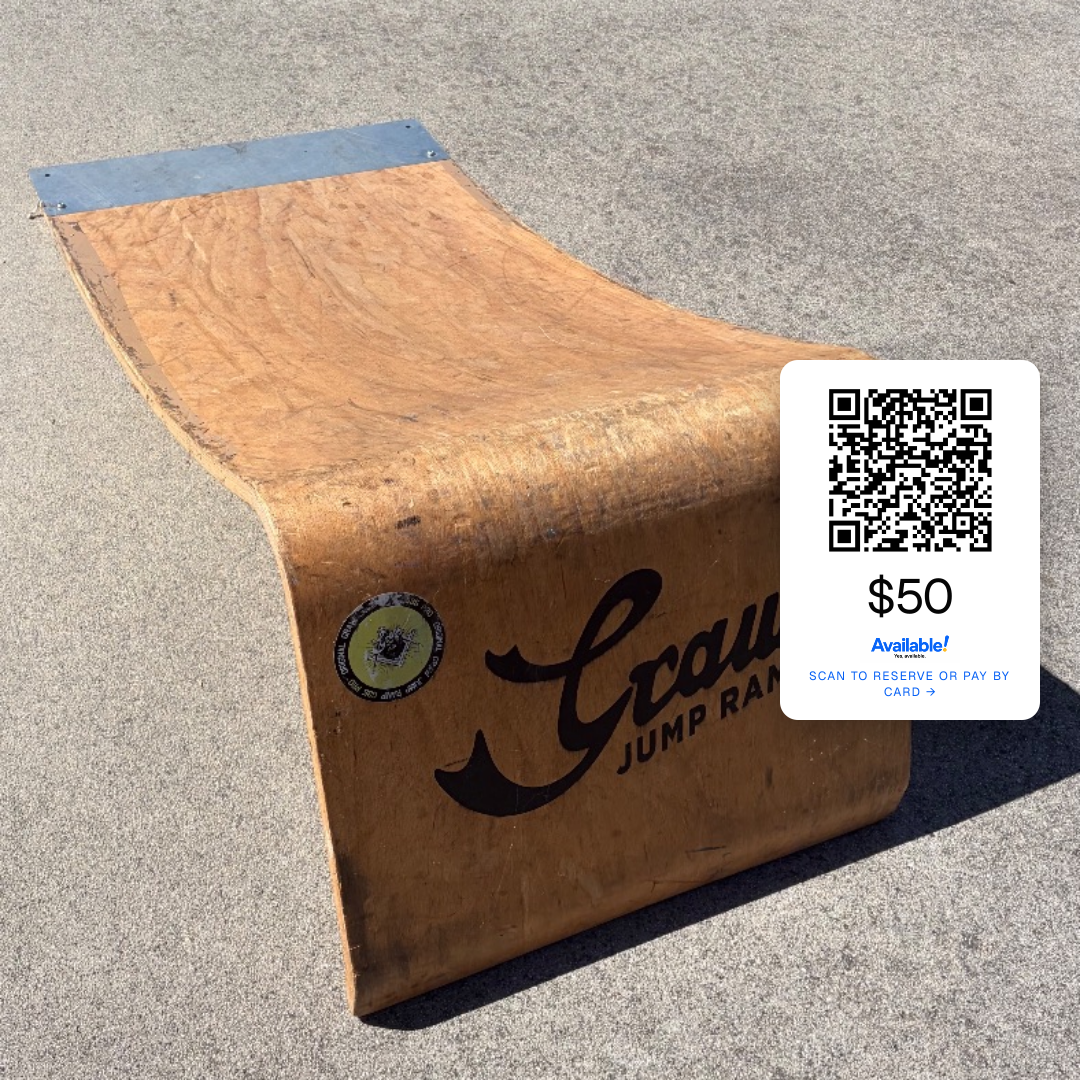
One of the photos does all the work.
The QR sits in the corner. Buyers scan with their phone camera and land on the actual item page. Buy Now, Reserve, or waitlist. On Facebook Marketplace, add this as photo #2 or #3 in your listing, not photo #1. Keep your best natural product shot as the thumbnail — Facebook buyers trust that first. The scan-to-buy image still does its job the moment someone taps in.
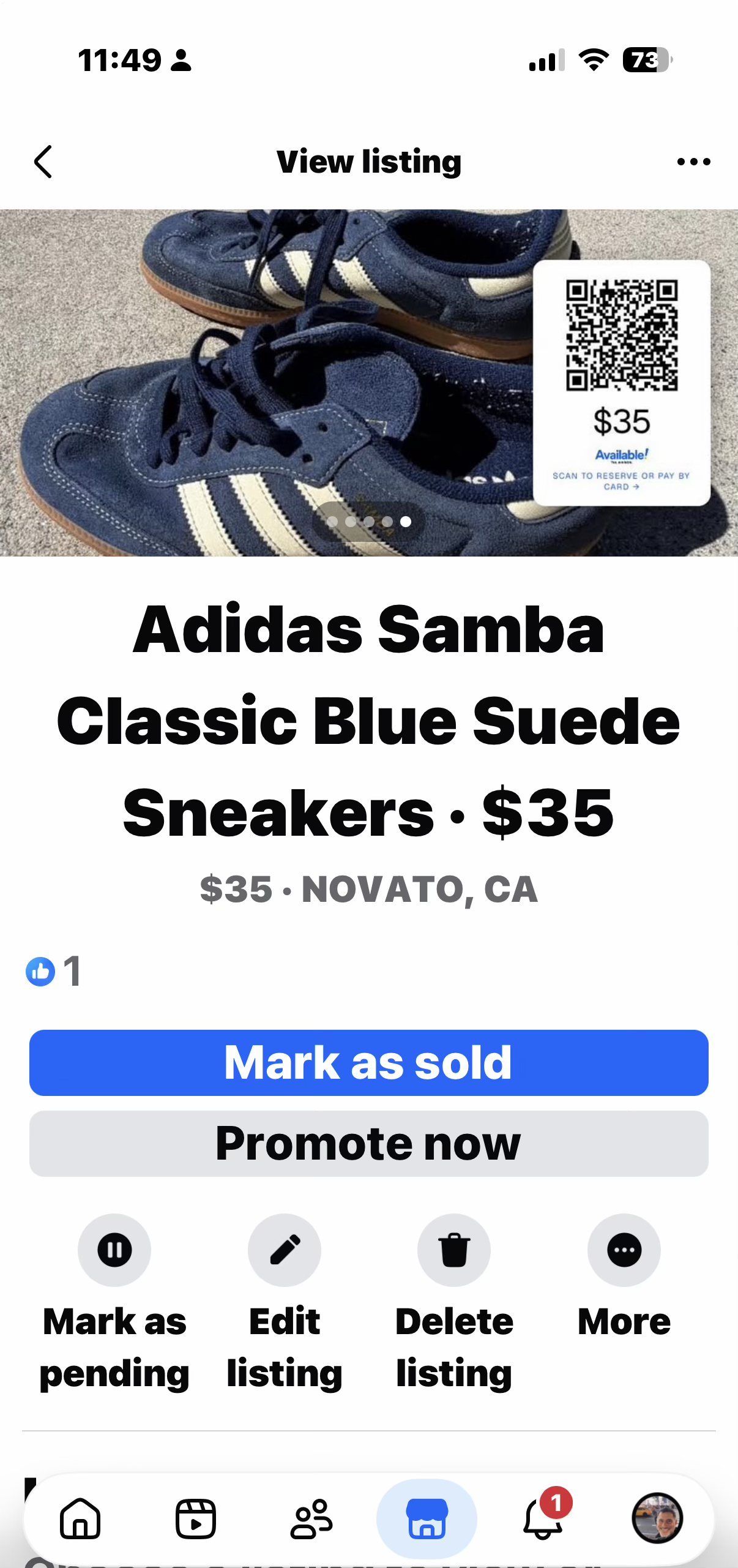
Scan-to-buy image as photo #2 or #3. QR intact.
Already have this item on Facebook Marketplace? Open the existing listing, tap Edit, add the scan-to-buy image as another photo, save. Do NOT create a duplicate listing. New item? Post to Marketplace like normal, keep your best natural product shot as photo #1 (the thumbnail buyers see in the feed), and add the Available!™ scan-to-buy image as photo #2 or #3. Facebook Marketplace renders it at full quality inside the listing carousel. Buyers scrolling see the QR the moment they tap in, scan it with their phone camera, and land on the actual item page.
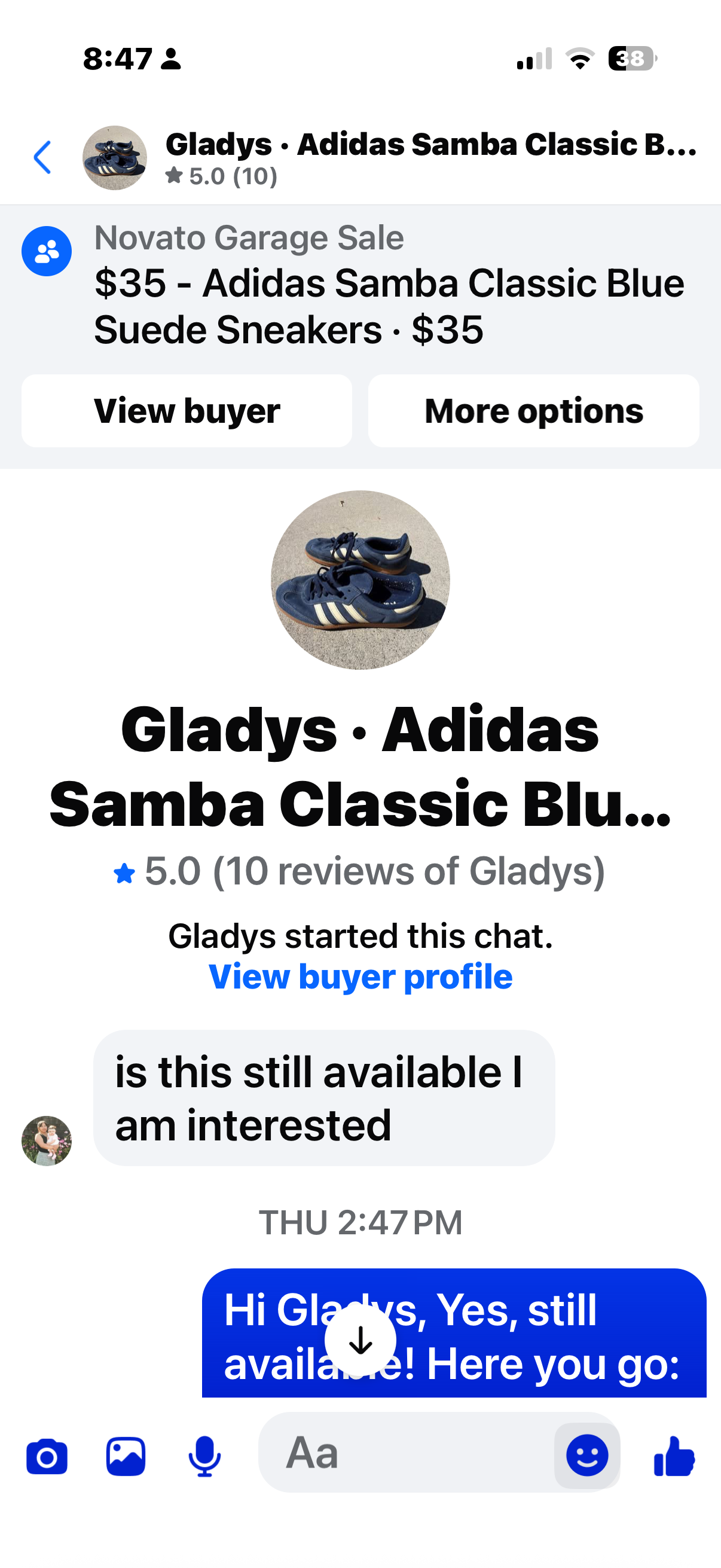
The DM you've gotten a thousand times.
You post the listing. A buyer messages you. This is the moment every casual seller loses hours to: back-and-forth, ghosting, "still interested?" chains. The whole point of Available!™ is what happens next.
![The Reply-to-a-DM box on the Available!™ share page showing the pre-scripted "Yes, reserve here: [link]" text with a Copy button](/walkthrough/step-8a.png)
Yes. Reserve here. Link does the rest.
Available!™ has a pre-scripted reply ready to copy. Paste it into Messenger. The buyer taps the link, sees the real item page with a Buy Now and Reserve button, and commits for real. No more "still available?" chains.
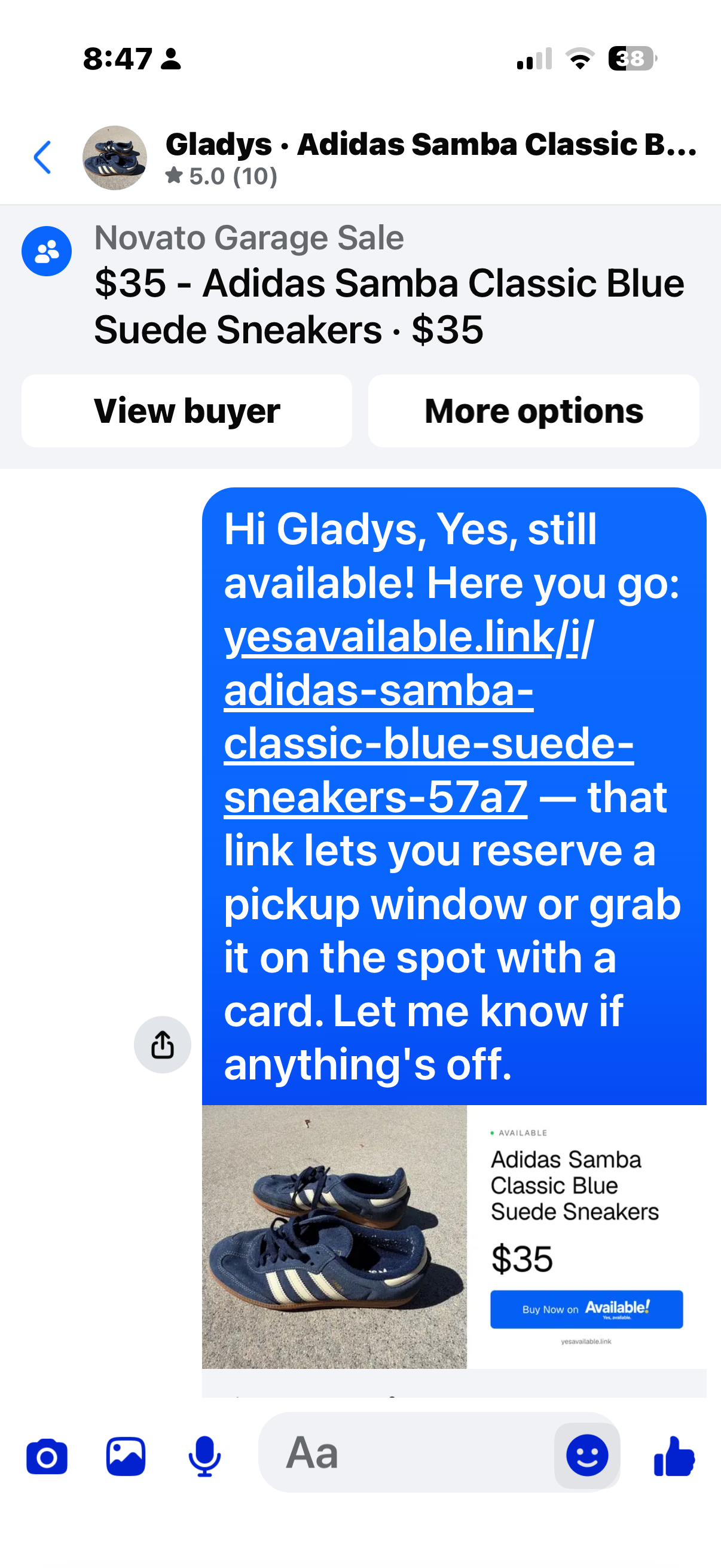
FB expands the link. Product, price, clear next step.
Messenger and FB expand your Available!™ link into a rich product preview with the photo, name, and price. The buyer taps through to see the item on Available!™ and picks Buy Now or Reserve there. No back-and-forth, no "still interested?" chain.
![The Reserve for pickup form on /i/[id] showing the "When can you pick up?" dropdown expanded with the seller's configured windows (e.g. Sat 9-12, Sun 10-2)](/walkthrough/step-8c.png)
You set the windows. They pick one. No "can I come at 11pm?"
You choose the pickup windows once (Sat 9-12, Sun 10-2, whatever you can staff) when you set up the sale. Every buyer reserving through Available!™ picks from your windows. That kills the "when can you meet?" back-and-forth that eats an hour per hold on Facebook Marketplace. Your address stays private until about two hours before the picked window (or the moment the buyer's card clears, whichever comes first). No address leaks to no-shows.
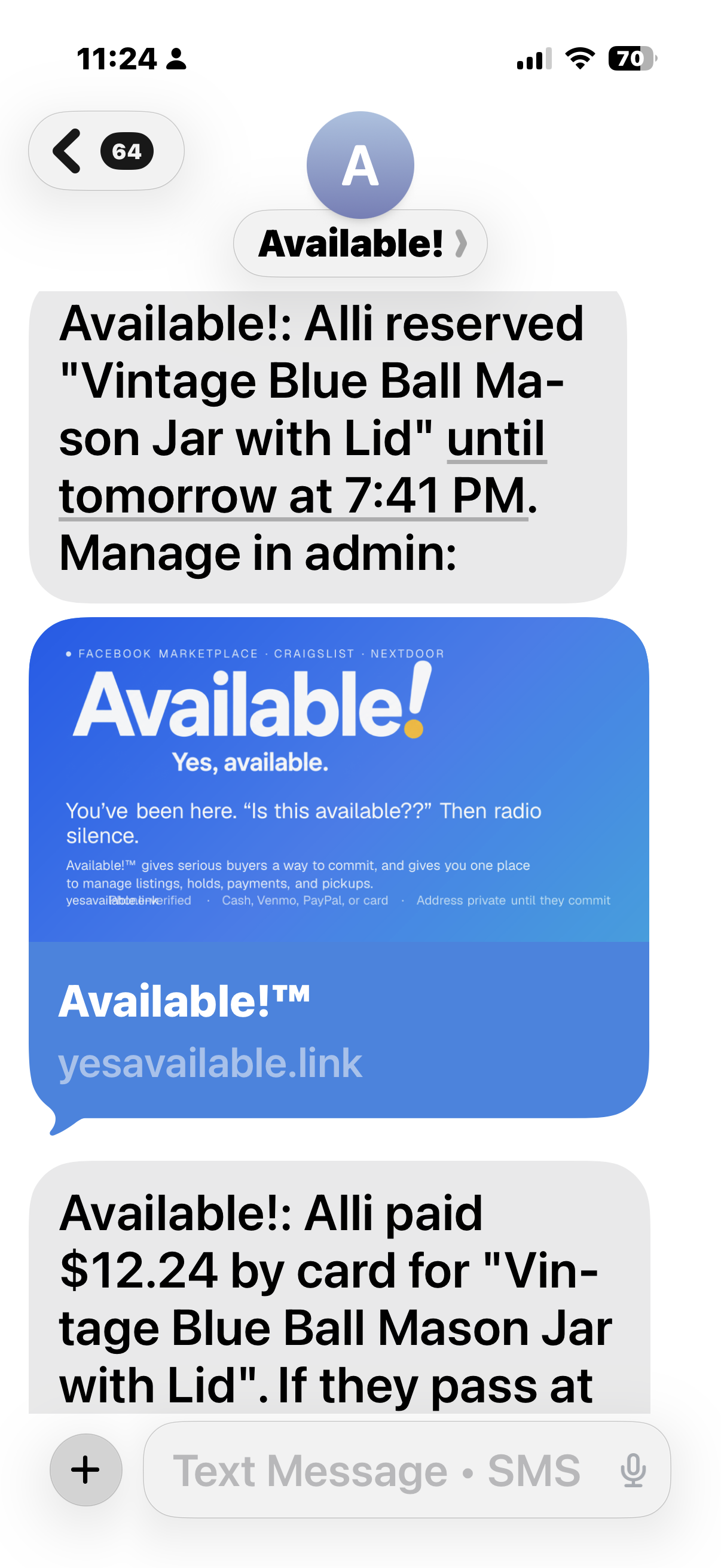
Serious buyers commit. You know instantly.
Reservation or Buy Now, either way the SMS lands. Includes the buyer's name, the item, the pickup window they picked (you set the available windows on your sale — nobody negotiates "can I come at 11pm?"), and a one-tap link to the admin thread. Your address stays private; buyers get it via SMS about two hours before their chosen window starts. Reply from the app, or reply from your default Messages app. Two-way SMS routing keeps everything in one thread.
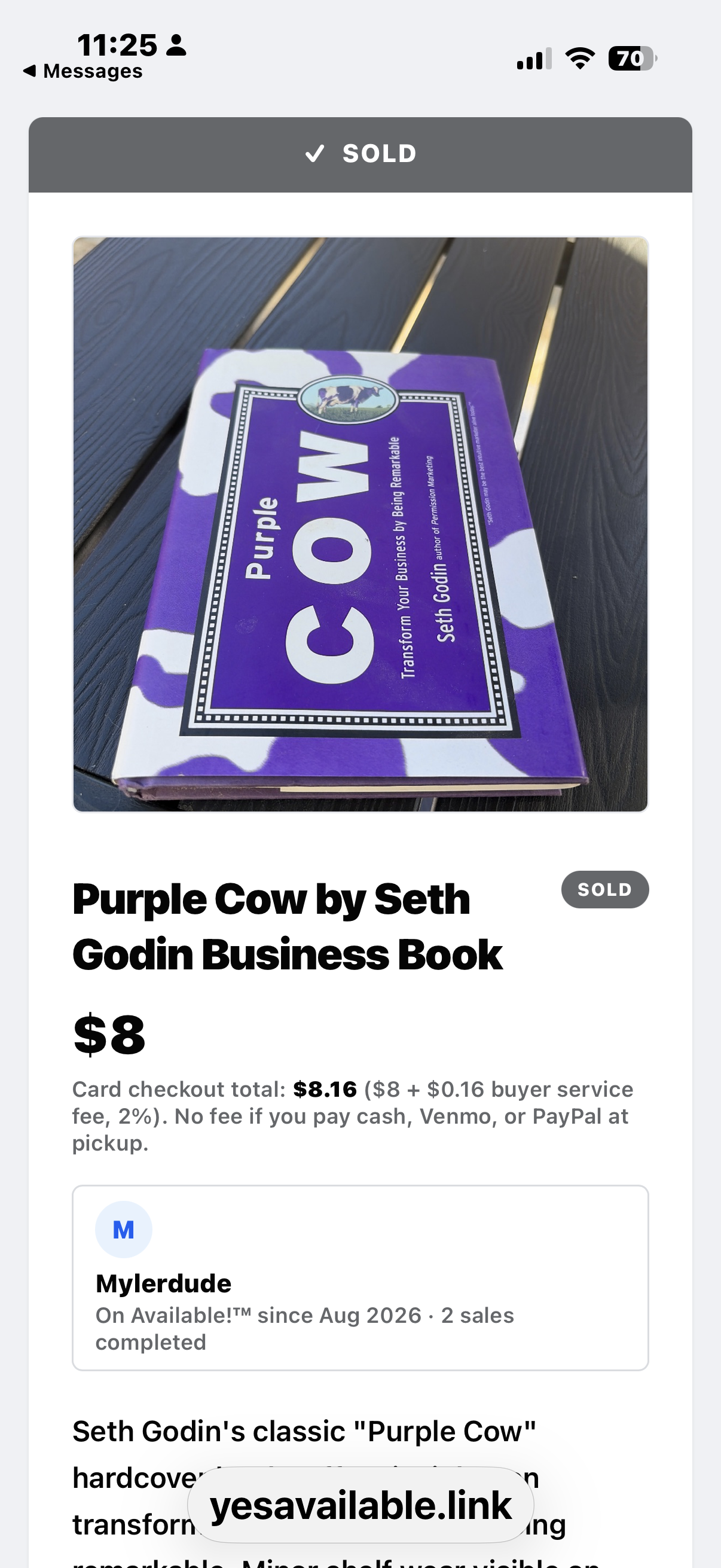
Sold marks propagate across your Available!™ pages.
When the card clears (or the buyer picks up), the item shows Sold across its Available!™ page, sale page, share links, and QR scans. Your inventory stays in sync. You'll still need to mark the original Facebook Marketplace, Craigslist, or Nextdoor post sold on those platforms — we can't reach into them to update your listing.
That’s the whole loop.
Friends-and-family beta right now. Zero platform fees. Founding Seller designation for life.